


How to use Claude AI, Canva and Notion to Create Pinterest Pins Faster (with downloadable guide)
Filed Under

If you have been manually writing pin titles, copy-pasting blog URLs, researching keywords, and deciding which boards to post to every single time you sit down to batch create Pinterest pins — this is the post that changes how you work.
This walkthrough covers the exact system inside the Create It, Pin It, Let It Work Pinterest Marketing Course but with a new twist, pairing it with Claude. When you enroll, you get 208 done-for-you Canva pin templates and access to a Notion workspace that is already set up and ready to run. Claude handles the research, the copy, and the organization. You handle the creative decisions and the final design.
Together, the whole process moves faster than you probably thought possible.
Let’s walk through it from the beginning (bonus, I have created a Claude SOP, so if you get the course, you can follow & implement immediately!!)
What you need before you start
Before you run this workflow for the first time, you need three things in place:
Your Notion workspace. The Pinterest Planning Checklist database comes with your course enrollment. It is already structured with every field Claude needs to fill in — blog URL, pin image titles, keywords, board assignments, call to action, content type, and phase tracking. You do not need to build anything from scratch.
Your Canva pin templates. The 208 templates are included with the course and live in your Canva account once you accept the share link (reminder they should already be split into 4 sets of 52 pins). These are the design files you will use in Step 2 of this workflow.
Claude AI. You can use the free version at claude.ai, though Claude Pro gives you access to longer conversations and more context — useful when you are batching multiple pins in one session. I use Pro… trust me it’s worth it.
Once those three things are in place, you are ready to run the workflow.
UPDATE AS OF JUNE 2026: The opt-in now includes a Claude Skill to install instead of having to install the workbook only – reminder this works with Create It, Pin It and Let it Work.
Step 1: Prep your content in Notion using Claude
This is where everything starts. Before a single design gets touched in Canva, Claude reads your blog and populates your Notion checklist with everything you need for that pin batch.
Here is how it works:
Open your Notion Pinterest Planning Checklist and review what is already there.
The first thing Claude does before suggesting any new content is audit what has already been planned. This prevents duplicate entries and keeps your system clean. Anything already in the checklist — whether it is at “Not started,” “In progress,” or “Done” — gets accounted for before Claude moves forward.
Claude scans your blog archive.
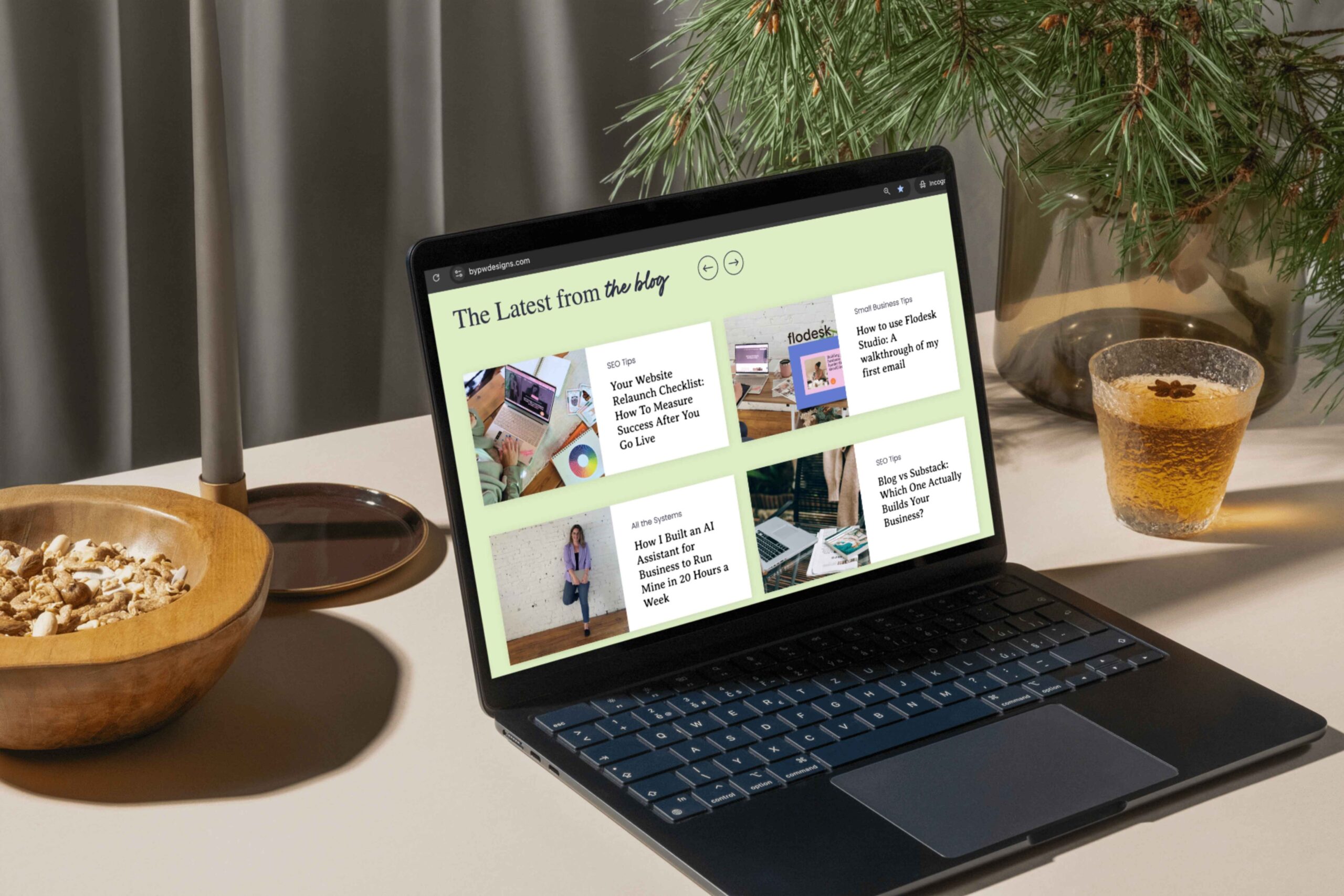
Using your blog URL (in this case for me it’s, bypwdesigns.com/blog), Claude crawls your full post archive and cross-references it against what is already in Notion. It identifies posts that are not yet in the system, are informational in nature, have clear Pinterest SEO potential, and align with at least one of your active boards.
Claude suggests a blog post to prep next.
Rather than just grabbing any random post, Claude looks for evergreen, searchable content that is a strong fit for your Pinterest audience. You confirm the selection or ask for a different option before anything gets created.
Claude fills in the entire Notion card.
Once a blog post is confirmed, Claude populates every field in the checklist. Here is exactly what gets filled in and how:
- Task — The exact blog post title as it appears on your site
- Content hyperlink — The full blog URL
- Pinterest boards — Claude checks your Pinterest profile and selects up to three boards that are the best fit for that piece of content
- Pinterest image titles — Claude suggests up to five pin text overlay options (10 words or fewer, written to generate clicks) and confirms them with you before adding to the card. You decide which ones make the cut.
- Informational content about — A one-to-two sentence description of what the post covers
- I am posting about — Claude selects the content type: informational content, promotion/sale, lifestyle content, or behind the scenes
- Keywords or phrases — This field works best when you bring in data from Ubersuggest or Google Search Console to find the keywords your post is already ranking for. If you have that data, share it and Claude will use it. If not, Claude will suggest relevant keywords based on the blog content and your niche.
- Call to action — Claude writes a CTA for the pin that always includes your business name
- Phase — Automatically moved to “Content Prepped” once the card is complete
- Status — Automatically set to “In progress”
- Date scheduled — Left blank. You fill this in once the pins are designed and ready to go into Tailwind.
Here is what that looks like in practice.
Using the most recent post on bypwdesigns.com — ADA Compliance for Websites: What It Is, Why It Matters, and What to Fix First — here is the card Claude just created live in Notion:
| Field | What Claude filled in |
| Task | ADA Compliance for Websites: What It Is, Why It Matters, and What to Fix First |
| Content hyperlink | bypwdesigns.com/website-ada-compliance/ |
| Pinterest boards | Web Design & SEO Tips, DIY SEO for Solopreneurs, Small Business Tips |
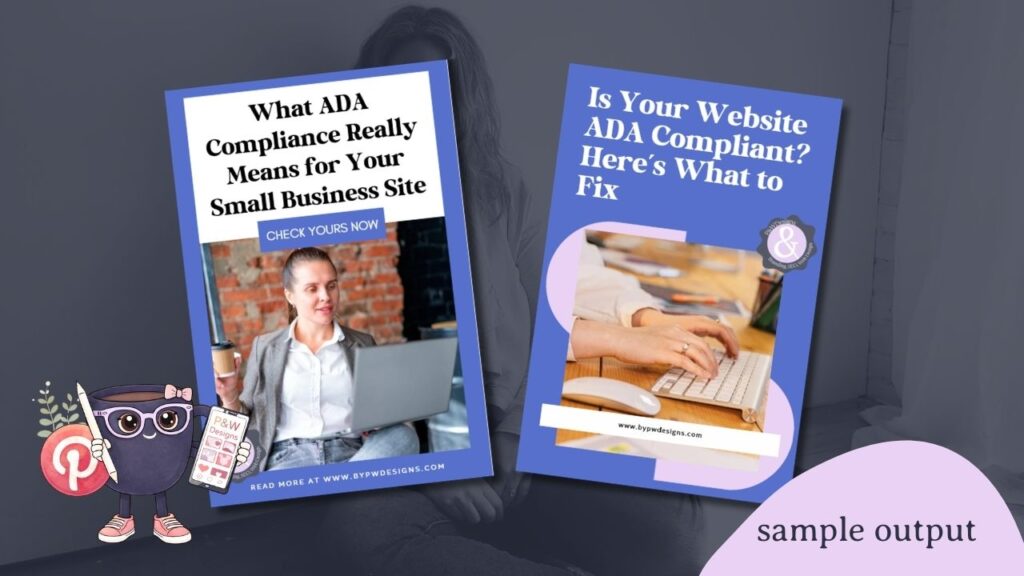
| Pinterest image titles | Is Your Website ADA Compliant? Here’s What to Fix / 5 Simple Fixes That Improve Your Website Accessibility Today / What ADA Compliance Really Means for Your Small Business Site / Your Website May Not Be Accessible — Here’s How to Check / ADA Compliance for Websites: What Every Business Owner Should Know |
| Informational content about | This post breaks down what ADA compliance actually means for small business websites, the WCAG standards behind it, and five practical fixes any business owner can make. |
| I am posting about | Informational content |
| Keywords or phrases | ADA compliance for website, website accessibility for small business, WCAG guidelines, how to make website ADA compliant, website accessibility checklist |
| Call to action | Improve your website’s visibility and strategy with P&W Designs — book an SEO audit at bypwdesigns.com |
| Phase | Content Prepped |
| Status | In progress |
From zero to a fully populated, ready-to-design Notion card — without writing a single word yourself. This above example look me LESS Than 5 minutes.
Pro tip: verify the SEO keywords, AI is still very iffy and not super successful at keywords.
That is Step 1. Once this card is complete, you move to Canva.
Step 2: Design your pins in Canva (with only having to peer review your ‘assistant’)
This is where the magic really happens — and honestly, where most people waste the most time even with ingenious Pinterest pin template systems.
If you’ve ever sat down to batch your Pinterest pins and found yourself copying and pasting the same title into 52 different slides, adjusting font sizes one by one, or hunting through your camera roll for the right photo — this step is going to change everything.
Here’s how it works when you let Claude handle the Canva side.
Before you start: the one thing you need to set up
Claude can only edit your Canva files directly if you have Canva connected as a connector in your Claude account. To check, go to claude.ai → Settings → Connectors and confirm Canva is listed and authorized. Without this connection, none of the automation below works — Claude will need manual file access instead.
Once that’s confirmed, you’re ready.
Make a copy of your template never the original
Open your Canva pin template library (this is the 208-template bundle inside Create It, Pin It, Let It Work). Select the template style you want to use for this blog post, then go to File → Make a copy. Rename the copy to match your blog post title so it’s easy to find later.
Then copy the shareable edit link — go to Share → Copy link and make sure it’s set to “Anyone with the link can edit.” Paste that link directly into your Claude chat. That’s all Claude needs to get in.
Claude rotates all your pin titles
Once you paste the Canva link, Claude opens the file through the Canva connector and rotates your confirmed pin titles across all 52 pages of the design automatically. Every title gets distributed evenly so no two consecutive pins look identical. Claude will flag any pages where a title might be running long or getting cut off, and suggest shortened alternatives that still keep the keyword and the click-worthiness intact.
Before Claude moves forward, it will ask you to do one thing: open your Canva file and scroll through all 52 pages to check that the text looks right on each one. Specifically, you’re checking that titles aren’t overflowing their text boxes, text isn’t overlapping images, and line breaks aren’t creating awkward reads. If anything looks off, note the page numbers and let Claude know — it can fix them.
Claude picks your photos after you describe the vibe
This is the step that gets people every time, because it’s genuinely fun. Before Claude pulls a single photo, it asks you to describe what you want. You’ll choose one of three directions:
Option A — Blog images: Claude pulls the photos directly from your blog post. Content-specific and already on-brand.
Option B — Pexels stock photos: You describe the vibe — moody workplace, bright and airy, flat lay, woman at laptop, close-up hands on keyboard — and Claude searches Pexels, then surfaces 4–6 example images right in the chat for you to review before anything gets added to your design.
Option C — A mix of both.
Once you confirm which photos you want (and how many to rotate), Claude uploads them to Canva and distributes them across all 52 pages. The goal is at least 3–5 different images rotating through so no two consecutive pins look the same. You could always choose more. FYI, this step is hard to do with your own photos so if the photos are imperative to the content, you may still need to do this step yourself or ask Claude how it can help.
Claude writes and rotates your CTAs
Finally, Claude suggests a round of 3-word CTAs — short, punchy, action-driven phrases that fit the CTA element on your templates. You approve them before anything gets added, and then Claude rotates them across all the CTA spots on every page.
The result: 52 fully designed, non-repetitive Pinterest pins — different titles, different photos, different CTAs — in a fraction of the time it would take to do manually.
Now, all you have to do is download and schedule in telegram using your notion prepped AI information! Scheduling with my Create It, Pin It, and Let It Work system takes 15 minutes MAX.
This breakdown of using AI and design tools to streamline Pinterest pin creation really resonates with me—especially the idea of automating the research and copywriting part so you can focus on what you do best. It’s a game changer for anyone looking to scale their Pinterest strategy without losing creativity.
I’ve definitely felt that manual burnout when it comes to batching, so the idea of using an SOP to handle the research side of things is such a game changer. It’s a huge relief to know there’s a way to reclaim that time for the creative design process without losing the necessary SEO focus.
I really enjoyed this workflow, the way you broke the SOP down into research, copy and board selection makes the whole Claude + Canva loop feel achievable for solo creators. I have been testing a similar AI assist approach for visual content production and it has shaved hours off my weekly output. Thanks for sharing the template and the prompts behind it.
Love how you turned the whole Claude + Canva + Notion flow into a repeatable SOP. The emphasis on letting AI handle the research and first-draft copy while you stay in charge of layout and visual taste is a great balance. I have been applying a similar automation-first approach to short-form video work, and the lift in output volume is real. Thanks for breaking the process down so clearly.
Your Claude + Canva + Notion SOP is a great example of letting AI handle the research and copy layer so creators can focus on the actual design. I’ve been applying a similar approach in my own Pinterest workflow — handing off the repetitive prep to AI so I can spend more time on the creative decisions. Thanks for the detailed walkthrough!
Love how you’ve turned the pin production flow into a repeatable SOP with Claude handling the research and copy. We took a similar approach for our own social graphics and found that once the prompts and board rules are dialed in, the rest of the week pretty much runs itself. Thanks for laying the workflow out so clearly!
Love how you broke down the whole Claude + Notion + Canva flow into a repeatable SOP. The idea of letting AI own the research and first-draft copy while you stay focused on the design taste is genuinely the part most people skip. I have been layering the same automation-first mindset into my own visual workflow and it has completely changed output volume. Thanks for the clear, practical write-up.